Your development, week by week
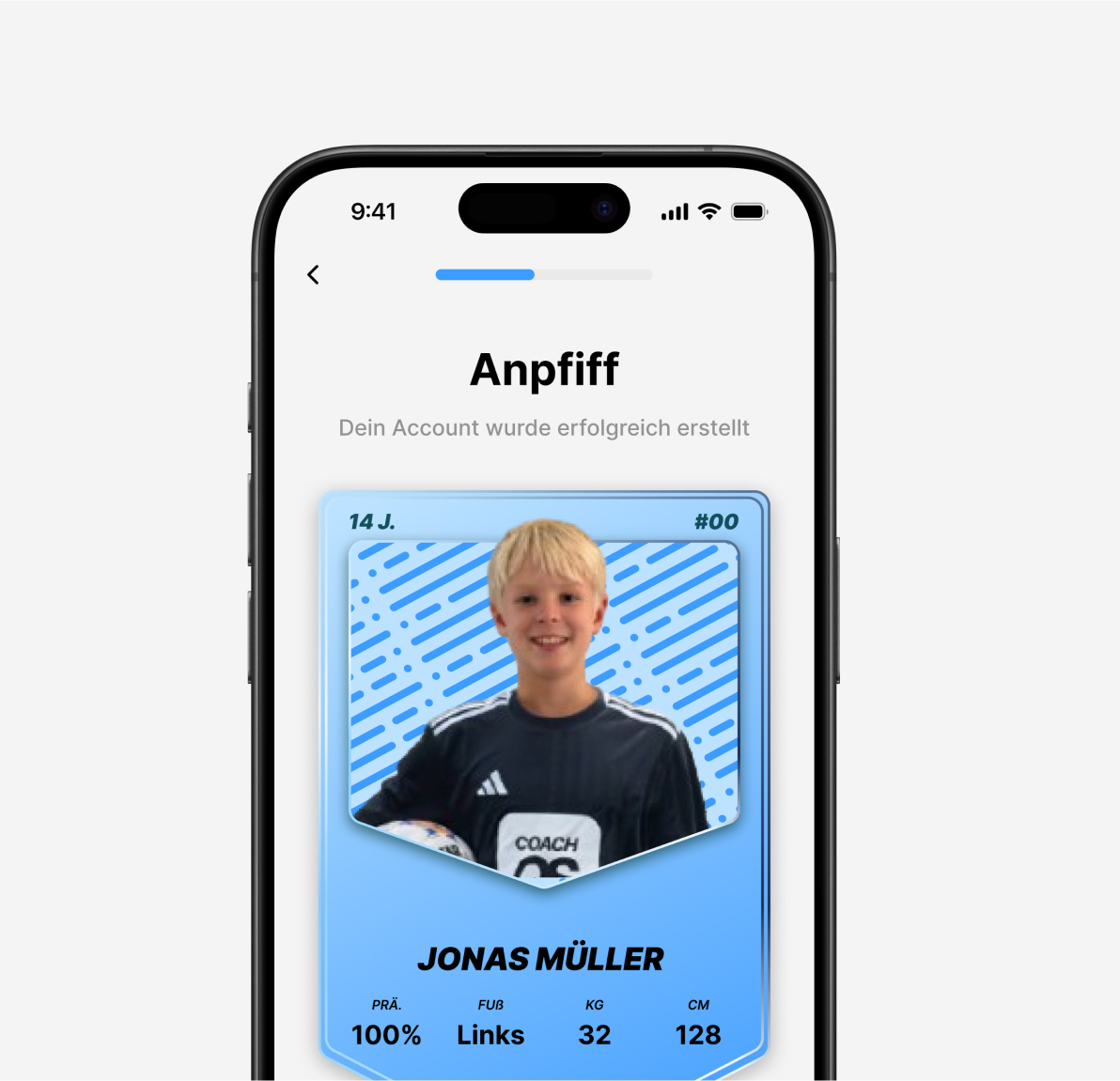
Create a profile, track your own metrics, and see what the coach is currently working on.
Confirmation & Cancellation Function for Training & Matches
The AI generates training with the right number of players and configures suitable groups
What players do in Player OS
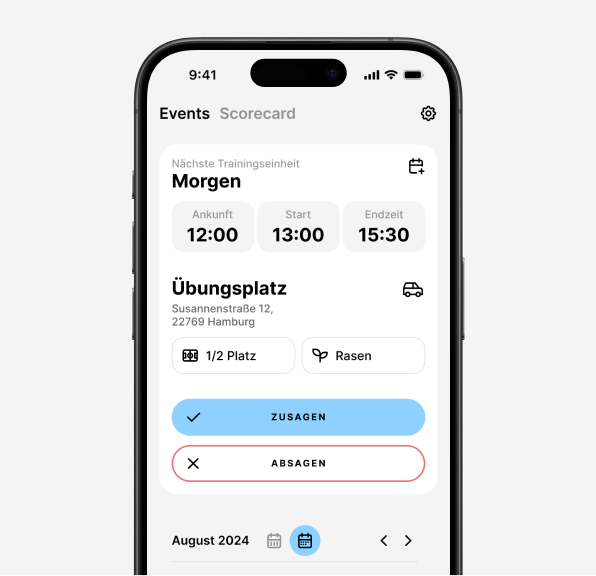
Attendance for training and matches
A single tap is enough. The response flows directly into the coach's planning: they know beforehand how many are coming and build the groups accordingly.
Tasks and goals from the coach
Individual tasks with deadlines, organized by categories like technique, tactics, athletics, or mindset. The player reports back on their status: open, in progress, understood, or mastered.
Ask the coach a question
Every task includes a field for follow-up questions. Players who do not understand something do not have to wait until the next session.
Daily check: How are you feeling?
Sleep, fatigue, muscle soreness, mood, and stress on a scale of one to five. The coach sees the value compared to the player's own average, not as a ranking against others.
Post-training workload
From U11 upwards, the familiar RPE scale is used; below that, an age-appropriate check with simple answers.
Development statistics and coach feedback
Evaluations across four areas and seventeen attributes, along with feedback from the coach directly to the smartphone, rather than rushed conversations on the sidelines.
Personal calendar
All training sessions and match days in one place, complete with times and meeting points.
Anonymous feedback on training
A short, age-appropriate survey after each session, ranging from three smileys for the youngest age groups to sliders in the U19 team. The coach only sees the summary for the entire team, never individual responses.
Parent accounts for younger players
For players under nine years old, the survey runs through the linked parent account. Parents can also view schedules and feedback.
History moves with the player
When moving to a new age group, all data is preserved. The new coach sees on day one what was worked on last, so the player does not start from scratch.
The data belongs to players and their parents
This is not fine print phrasing, but the foundation on which Player OS is built. Players who leave the team take their data with them, or it is removed.
- If a player leaves the team, their data is automatically removed.
- The coach never sees who answered what in training feedback; results are only shown once there are at least three responses per question.
- Players can view and delete their own responses in Player OS.
- Every question can be skipped, and the response window closes after 48 hours.
- The servers are located in Germany, and processing is GDPR-compliant.
- Player OS is not a public rating portal: there are no rankings comparing players against each other.
Frequently asked questions from parents
What does Player OS cost for players and parents?
Nothing. Player OS is included in the team or club license. There are no costs for players and parents, no advertising, and no in-app purchases.
Does the coach see what my child selected in the feedback?
No. The coach only sees the summary for the entire team, and only starting from three responses per question. For teams with up to six players, evaluations are not done per training session, but across four weeks.
What happens to the data if my child leaves the club?
They are automatically removed. The data belongs to the player and their parents, not the club and not us.
At what age does Player OS make sense?
The app adapts to age. For the youngest players, it consists of three questions with smileys taking half a minute; in the U19 team, sliders from one to ten are used. Under nine years old, the survey runs via the parent account.
Is this a performance ranking for my child?
No. There is no table comparing players against each other. The daily check is evaluated against the player's own four-week average, not against others – and dips during growth spurts are normal, not a bad result.
Do parents need their own access?
For younger players, yes – the parent account is linked to the child and receives the surveys and schedules. Older players use Player OS themselves.
What clubs and parents ask before making a decision
Confirmations and declines: How do you know who is coming?
Players and parents accept or decline in Player OS for training and matches. This is not a minor detail: the number feeds directly into planning, and the training generator uses the actual player count to build the groups accordingly. Attendance is logged and included in statistics, per team over 60 days and per player across the season. Reminders are sent via push notifications and email. We intentionally connect responses with planning, because an attendance list that triggers no action only creates work. This is especially relevant for coaches who still do not know at 5 p.m. on Wednesdays whether eleven or eighteen players are coming.
Record attendance and availability in the squadTeam and club management: Who maintains squads and teams?
The coach manages their squad independently: invite players via QR code, link, code, or email, form groups, and add assistant coaches via a dedicated joining method. In Club OS, a club manages all teams, coaches, and players centrally, defines roles, and bills under a single contract. During an age group transition, the squad and history move along instead of being recreated from scratch. We deliberately separate team and club because a coach with one team does not need club administration. This applies especially to clubs managing between ten and fifty teams.
Centrally manage multiple teamsCalendar and schedules: Where are training sessions and matchdays listed?
Training times are located in the team settings, matchdays and events in the team calendar; Club OS adds a club calendar across all teams. Players and parents see the same events in Player OS and accept or decline there. Pitch management with booking of areas and time slots across the entire club is not included – you specify the available space for each session in the training generator. We state this upfront so that no one expects occupancy planning. This is especially relevant for youth coordinators who manage schedules across many age groups.
Schedules and team organization for players and parentsDocuments, data, and privacy: Where is the data stored?
GDPR-compliant, the servers are located in Germany. A player's data belongs to them and their parents: if they leave the team, the data is automatically anonymized there and remains only in their own Player OS account. For minors, clubs manage consent through their contracts with parents and players. Reports for training documentation are exported as PDF, CSV, or Excel; personal development data only with parental consent, health data is not. Coach OS, on the other hand, is not a storage system for contracts, player passes, or medical certificates. We deliberately keep it so that a change of coach does not become a data issue. This matters especially for clubs that want to get through parents' evening without follow-up questions.
Data privacy and compliance in football clubsParents and members: How are parents involved?
For younger players, a parent account handles acceptances and declines, schedules, and coach feedback. Parents see their child's development progress and receive club messages via app, push notification, and email. Players under nine years old answer the short post-training survey through this account. However, Coach OS is not a member management system with membership fees, dunning, and accounting – dedicated club software remains necessary for that. We state this clearly so that clubs do not start with false expectations. This applies especially to children's football clubs.
Involve players and parentsAccess and usage: How does everyone join?
Invitations work via QR code, link, code, or email – a player joins in under a minute without anyone maintaining lists. Player OS runs on iOS and Android, Coach OS also runs in the browser and on desktop; one login works everywhere, regardless of where someone registered. Assistant coaches join via a dedicated process and do not create a new team. We deliberately keep onboarding short because an app that parents do not set up achieves nothing in the club. This applies especially to teams where not everyone is tech-savvy.
Digital training planning in the appMultiple teams: What happens from the tenth team onwards?
A coach with multiple teams switches between them using a single login; each team is managed individually and costs €19.90 per month. If a club wants to manage teams together, that is Club OS: a dashboard across all teams, key metrics, automated notifications, central billing. The plans depend on the number of teams, ranging from up to ten teams to over fifty. We deliberately separate this because a coach with two teams does not need club administration. This applies especially to clubs switching from individual subscriptions to a club license.
Managing multiple teams in a grassroots sports clubFees and payments: Does Coach OS bill membership fees?
No. Membership fees, dunning, accounting, and direct debits are not included in the feature set; club management software remains necessary for that. Only usage is billed: 19.90 euros per month and team for individual coaches, while Club OS provides one contract for the entire club instead of many individual subscriptions. No minimum contract duration, cancellable monthly, preceded by 30 days for free without a credit card. We do not build membership fee management because it has nothing to do with training planning and every association has its own rules. This applies especially to clubs that want to keep their existing member management.
Prices and plansMessages: How does the club reach everyone?
The club sends messages to coaches and parents via the app, as push notifications, and by email. The coach reaches their team via the same channels, and the completed session is sent as a PDF to the coaches' group. Player feedback is collected through the short post-training survey, which the coach only sees anonymized and starting from three responses. There is no group chat – the channel the club already uses remains for that purpose. We are not building another messenger because nobody needs a fifth group. This applies especially to clubs that want to separate announcements from everyday chatter.
Communication and feedback in the coaching teamRoles and permissions: Who can see what?
Club OS has permission management for admins and coaches: The club determines who sees which teams, players, and evaluations. Assistant coaches join as assistant coaches, not as a new team, and see the squad of their team. Players and parents see exclusively their own data. A coach receives training feedback only in anonymized and aggregated form, from three answers per question, never individually. We deliberately design it this way because a club dashboard is meant to provide an overview and is not a control tool. This applies especially to clubs with changing responsibilities.
Tasks and roles in the youth coaching teamEspecially suitable for

With Player OS, you take your development to the next level – smart, data-driven and with lots of fun.